 RecovMe
Your chances: good on a hard drive
Hard drives don’t erase deleted files. They mark the space as free and leave the files in place until something new is saved there. External SSDs are different, so check which kind you have below.
Hard drive, SSD, or something worse?
| Your drive | Your chances |
|---|---|
| External hard drive (spinning disk, like most large Seagate, WD, Toshiba or LaCie drives) | Good, whether files were deleted, the Trash was emptied, or the drive was quick-formatted. |
| External SSD | It depends. Some wipe deleted files within minutes, others keep them. Drives formatted as exFAT usually keep them. Unplug it now and scan before using it again. |
| Drive clicks, isn’t detected or keeps disconnecting | Stop. It’s failing physically, and running any software on it can make it worse. A data recovery lab is the safe option. |
Before you do anything
- Don’t save anything to the drive, and don’t install apps on it. New files can land where the deleted ones are.
- Don’t run disk repair (First Aid or chkdsk) before you’ve recovered what you need. Repairs write to the drive.
- Don’t save recovered files back onto the same drive. Use your computer’s own drive or another external drive.
Check the Trash or Recycle Bin first
On a Mac, files deleted from an external drive go to the Trash, but only show there while the drive is connected. Plug it in and open the Trash. On Windows, files deleted from an external hard drive usually go to the Recycle Bin. Files deleted from USB sticks, or with Shift + Delete, skip it.
Recover the files in 7 steps
It works the same on a Mac and on Windows. RecovMe is free to the end: no trial, no size limit, nothing to pay before you can save.
- Plug in the drive and open RecovMe
Download it free and open it. On a Mac, enter your password when asked, because reading deleted space needs direct access to the drive. On Windows, if SmartScreen appears, choose More info and then Run anyway.
- Pick the drive
Choose it in the list on the left. If the drive has more than one part (volume) listed under it, pick the one where the files were.
- Choose what to look for
Photos, Videos and Documents are on by default. Add Music & Audio or Archives, or choose All File Types. Fewer types make the scan faster and the results smaller.
- Keep Smart Scan
Smart Scan first brings back deleted files with their original names and folders, then searches every block for the rest. Original names come back on drives formatted for Windows (NTFS, exFAT or FAT32), which is how most external drives come. On drives formatted for Mac (APFS or Mac OS Extended), files come back from the deep search, sorted by type.
- Save to a different drive
Pick a folder on your computer’s own drive, or on a second external drive, with enough free space for what you want back. If you pick a OneDrive or iCloud folder, RecovMe warns you that the files would be uploaded.
- Start the scan and let it run
Press Start Scan. A large drive can take hours, so keep the computer plugged in and awake. On a Mac, Protect the drive while scanning unmounts it so nothing writes to it. It comes back when the scan ends. You can press Stop at any time and keep what was found.
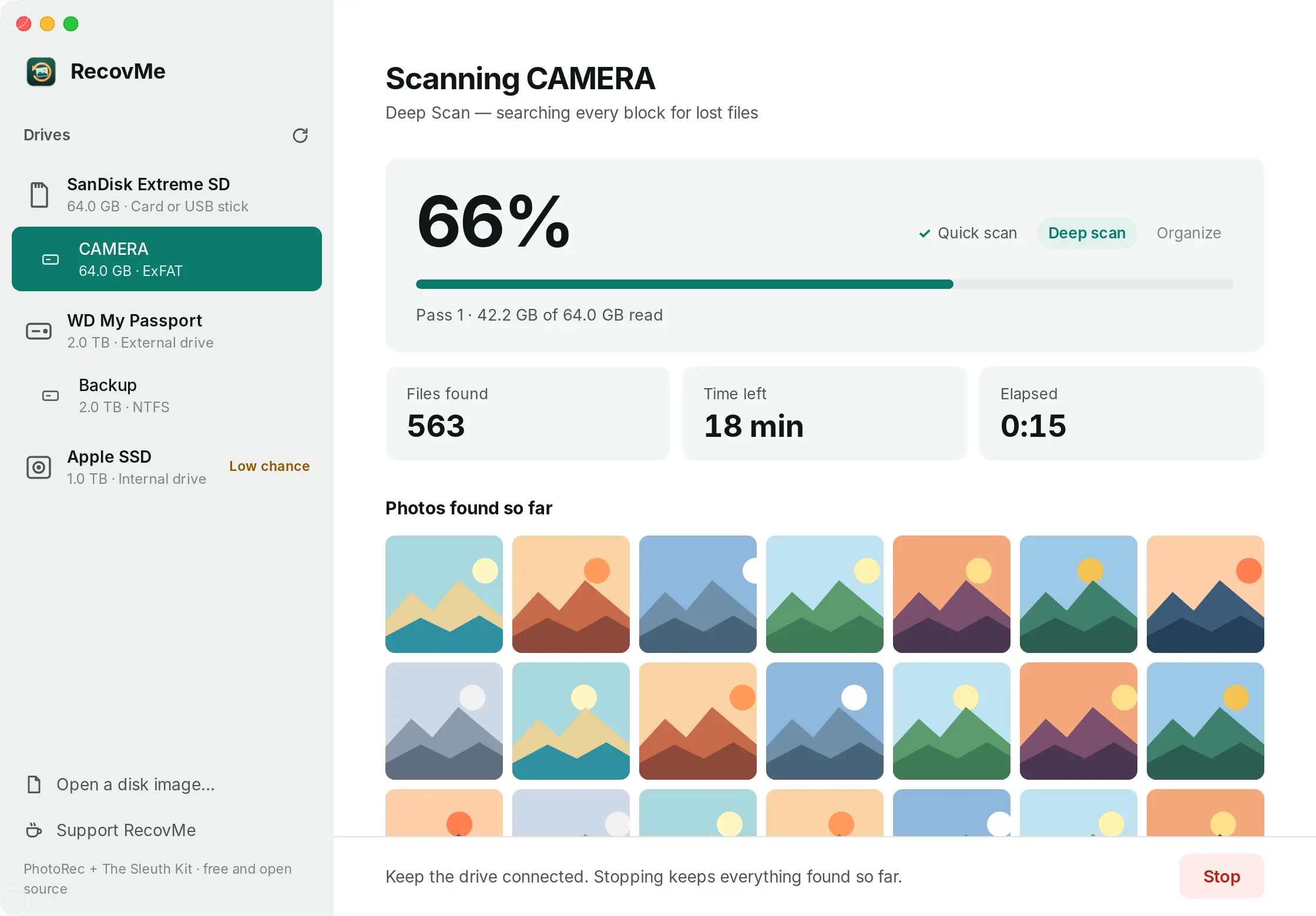
Progress, time left and photos found so far. - Open your files
Press Open Recovered Files. Files that kept their names and folders are in Original names. Everything else is sorted into Photos, Videos, Music, Documents and Archives, with photos and videos named by the date they were taken.
Is my drive formatted for Mac or Windows? On a Mac, select the drive in Finder, choose File › Get Info and look at Format. On Windows, right-click the drive in This PC, choose Properties and look at File system.
Questions
How much free space do I need to save the files?
As much as the files you want back. Choosing only the file types you need, like Photos, keeps the results smaller. Duplicates are removed automatically.
Can I recover files I deleted from my computer’s internal drive?
Only if it’s a hard drive, like in many older PCs. Internal SSDs in laptops wipe deleted files on their own, and every Mac with Apple silicon encrypts its drive, so no app can scan them back. Use the Trash, Time Machine, File History or OneDrive first.
Does it work with any brand of drive?
Yes. Seagate, WD, Toshiba, LaCie, Samsung and any other drive your computer can see as a disk.
Is RecovMe really free?
Yes, 100%. There’s no trial, no size limit and nothing to unlock after the scan. It’s open source, and donations are optional.
Can it damage my drive?
No. RecovMe only reads the drive you scan and refuses to save recovered files onto it, because writing there could overwrite what you want back.