 RecovMe
Your chances: good
Cameras, phones and card readers don’t wipe deleted photos. The photos stay on the card, hidden, until new files are saved over them. That’s why the first step matters most: stop using the card.
Before you do anything
- Don’t take more photos with that card, and don’t copy anything onto it. New files can land right on top of the deleted ones.
- Don’t format the card, even if the camera or computer asks you to.
- Don’t save recovered photos back onto the card. Save them to your computer. RecovMe won’t let you pick the card anyway.
Deleted on an Android phone? Look in the gallery’s Trash or Recently deleted folder, and in Google Photos’ Trash, first. If the photos were on the phone’s own storage rather than its SD card, follow the Android guide instead: RecovMe copies what still survives there, such as trash folders and chat apps.
Recover your photos in 8 steps
It works the same on a Mac and on Windows. RecovMe is free all the way to the end: no trial, no size limit and nothing to pay before you can save your photos.
- Take the card out of the camera or phone
Put it in your computer’s SD slot or a USB card reader. A cheap reader works fine. Connecting the camera itself with a cable often doesn’t work, because many cameras don’t give the computer direct access to the card.
- Download and open RecovMe
It’s free for Macs with Apple silicon (macOS 11 or later) and for Windows 10 and 11. Your Mac will ask for your password, because reading deleted space needs direct access to the card. On Windows, if a blue SmartScreen window appears, choose More info and then Run anyway.
- Pick the card
Choose it in the list on the left. Cards are usually named after the camera, or called NO NAME or Untitled.
- Choose what to look for
Under Look For, Photos, Videos and Documents are on by default. Leave Photos on, and turn off what you don’t need for a faster scan. RAW photos are included: CR2, CR3, NEF, ARW, RAF, ORF and DNG.
- Keep Smart Scan
Smart Scan is the recommended choice. It first brings back recently deleted photos with their original names, then searches every block of the card for the rest.
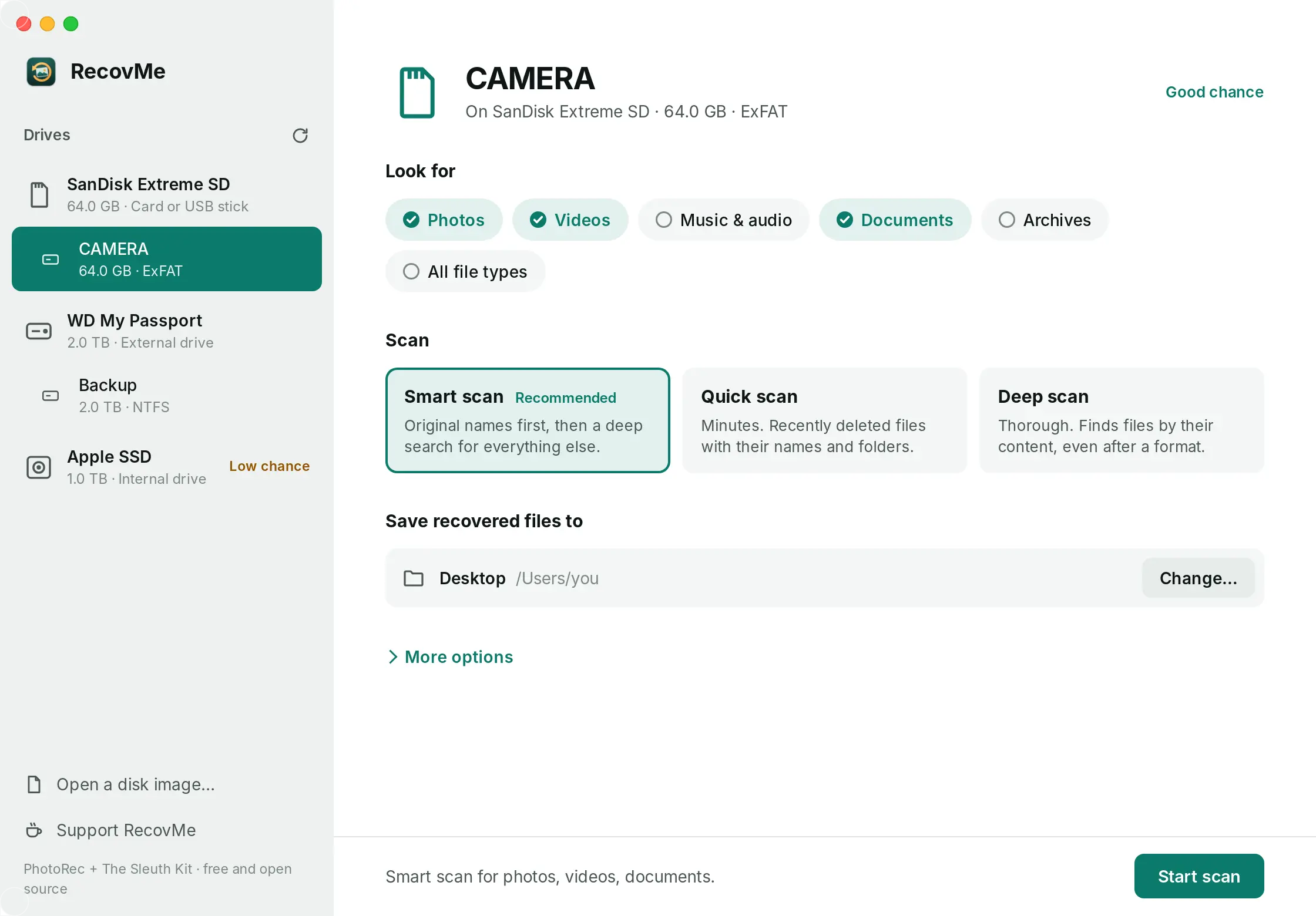
Pick the card, what to look for, and where to save. - Save to your computer
Under Save Recovered Files To, pick a folder on your computer. If you pick a OneDrive or iCloud folder, RecovMe warns you that the photos would be uploaded.
- Start the scan
Press Start Scan. Photos appear on screen as soon as they are found. You can press Stop at any time and keep everything found so far.
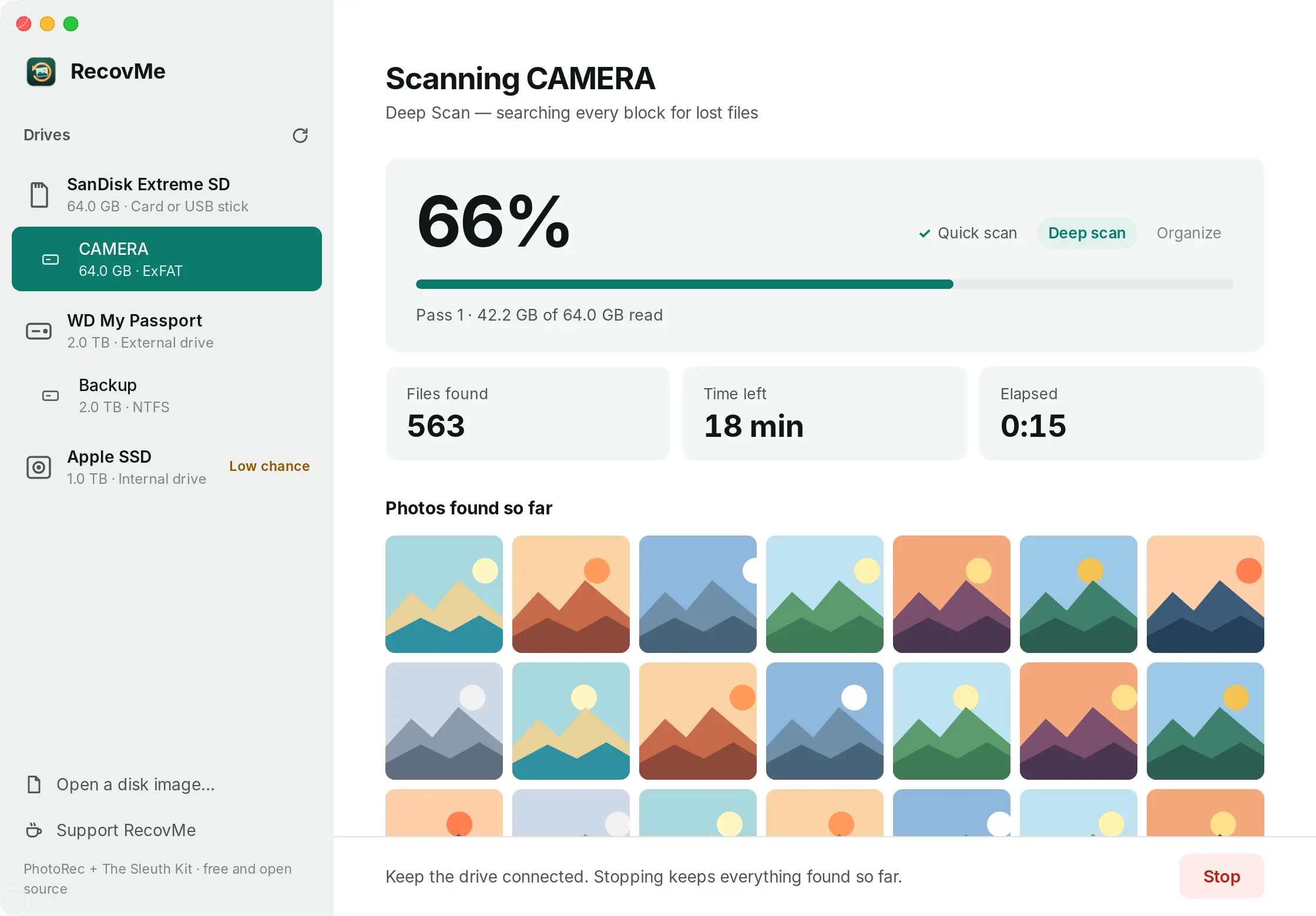
Photos show up while the scan is still running. - Open your photos
Press Open Recovered Files. Photos that kept their names are in Original names. The rest are in Photos, named by the date they were taken and sorted into month folders like 2024-07.
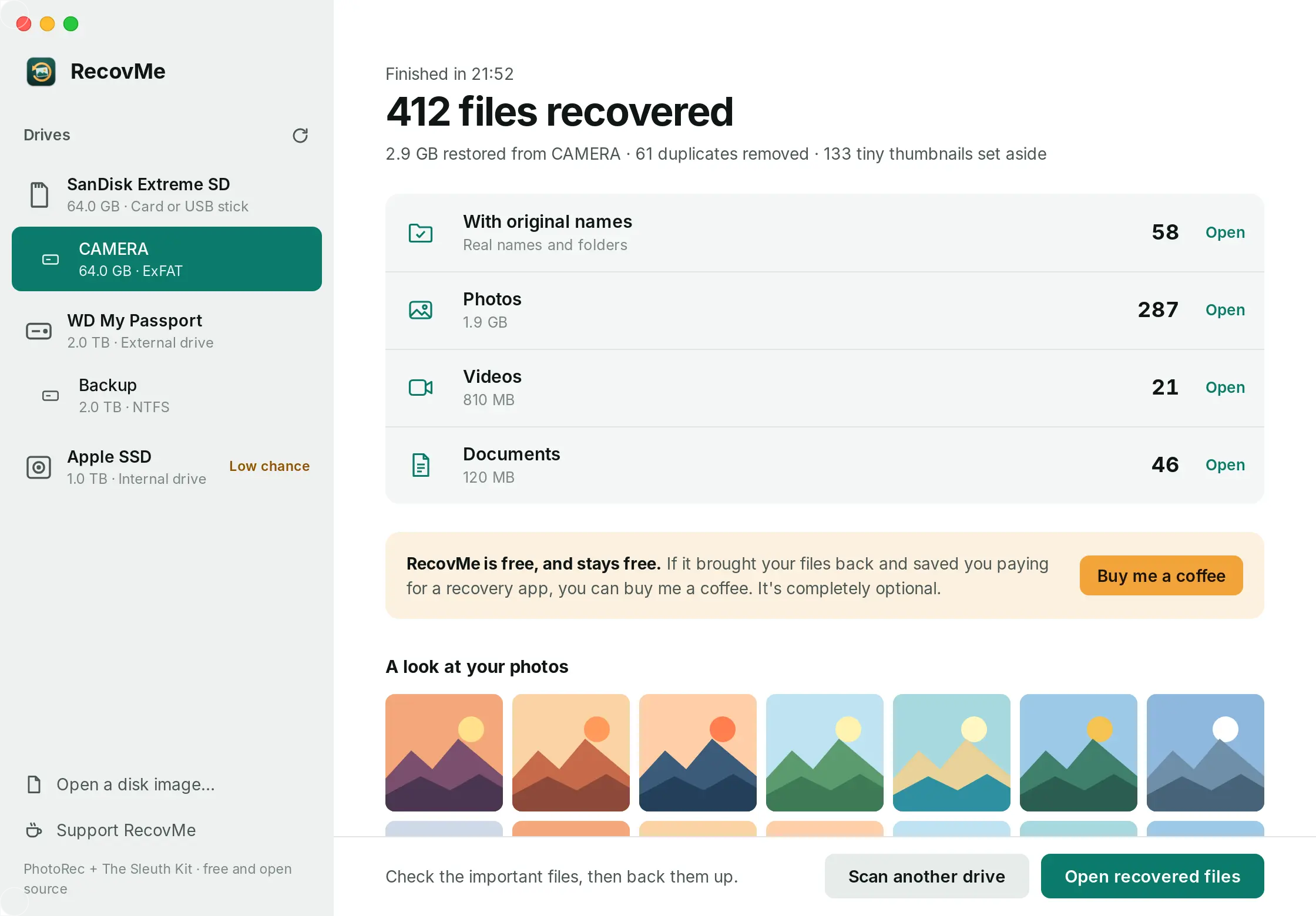
Everything comes back sorted by type, with a short report.
Why some photos won’t open
A photo that comes back broken, half grey or not at all was partly overwritten by newer files. No app can rebuild the missing part. It happens more the longer the card was used after the photos were deleted, which is why stopping straight away matters so much.
Open the important photos first, and copy the good ones somewhere safe, like a backup drive or cloud storage.
Questions
Is RecovMe really free?
Yes, 100%. There’s no trial, no size limit and nothing to unlock after the scan. RecovMe is open source, so anyone can check how it works. Donations are optional and change nothing in the app.
Can I recover photos after formatting the card?
Usually, yes. A normal format only clears the card’s index, and the photos stay until new ones are saved over them. See how to recover a formatted SD card.
Will my photos keep their dates?
Yes. RecovMe reads the date each photo was taken from inside the file and names the photo by that date. Location data inside the photos is kept too.
How long does it take?
It depends on the size of the card and how fast the card reader is. Finding recently deleted photos by name takes minutes. The deep search reads the whole card, so a large card takes longer. You can stop at any time and keep what was found.
Does it work with my camera’s card?
It works with SD, microSD and other memory cards your computer can read through a card reader, from any camera, phone, drone or dashcam.
Can it damage the card?
No. RecovMe only reads the card and never writes to it. On a Mac it can also unmount the card during the scan, so the system can’t write to it either.