 RecovMe
Your chances: usually good
A normal format, called a quick format, only erases the card’s index: the list of where each file is. The photos and files themselves stay until new data is saved over them. A few kinds of format do wipe everything, so check yours below.
Which format did you do?
| What happened | Your chances |
|---|---|
| Formatted in a camera, phone, drone or dashcam | Good. Most devices do a quick format. A few cameras also offer a “low-level format”, which overwrites everything. |
| Formatted in Windows with “Quick Format” ticked (the default) | Good. Only the index was cleared. |
| Formatted in Windows with “Quick Format” unticked | Very low. A full format writes zeros over the whole drive, so the old files are gone. |
| Erased in Disk Utility on a Mac | Good, unless you used Security Options to write over the data. |
| The card shows as empty, or asks to be formatted | Good. The index is damaged but the files are usually still there. Don’t format it. |
| Formatted, then used again for a while | It depends. New files overwrite old ones, so you get back less, but scan before using it any more. |
If the card asks to be formatted
- On Windows, a window says “You need to format the disk before you can use it”. Click Cancel.
- On a Mac, a window says the disk is “not readable by this computer”. Click Ignore, not Initialize.
- In a camera, turn it off and take the card out. Don’t let it format the card or record onto it.
Recover the files in 7 steps
It works the same for SD and microSD cards, USB sticks and camera cards, on a Mac or Windows. RecovMe is free to the end: no trial, no size limit, nothing to pay before you can save.
- Stop using it
Don’t copy anything onto the card or stick, and don’t put it back in the camera. Every new file can overwrite something you want back.
- Connect it to your computer
Use the SD slot or a USB card reader for cards. Plug a USB stick straight in.
- Open RecovMe and pick the drive
Download it free, open it and choose the card or stick in the list on the left. On a Mac, enter your password when asked. On Windows, if SmartScreen appears, choose More info and then Run anyway.
- Choose what to look for
Photos, Videos and Documents are on by default. Add Music & Audio or Archives if you need them, or All File Types to search for all 480+ kinds.
- Use Smart Scan or Deep Scan
After a format, the old file names are usually gone, so the deep search does the real work. Smart Scan runs both searches and is a safe choice. Under More Options, keep Search the whole drive on. It’s on by default and finds the most after a format.
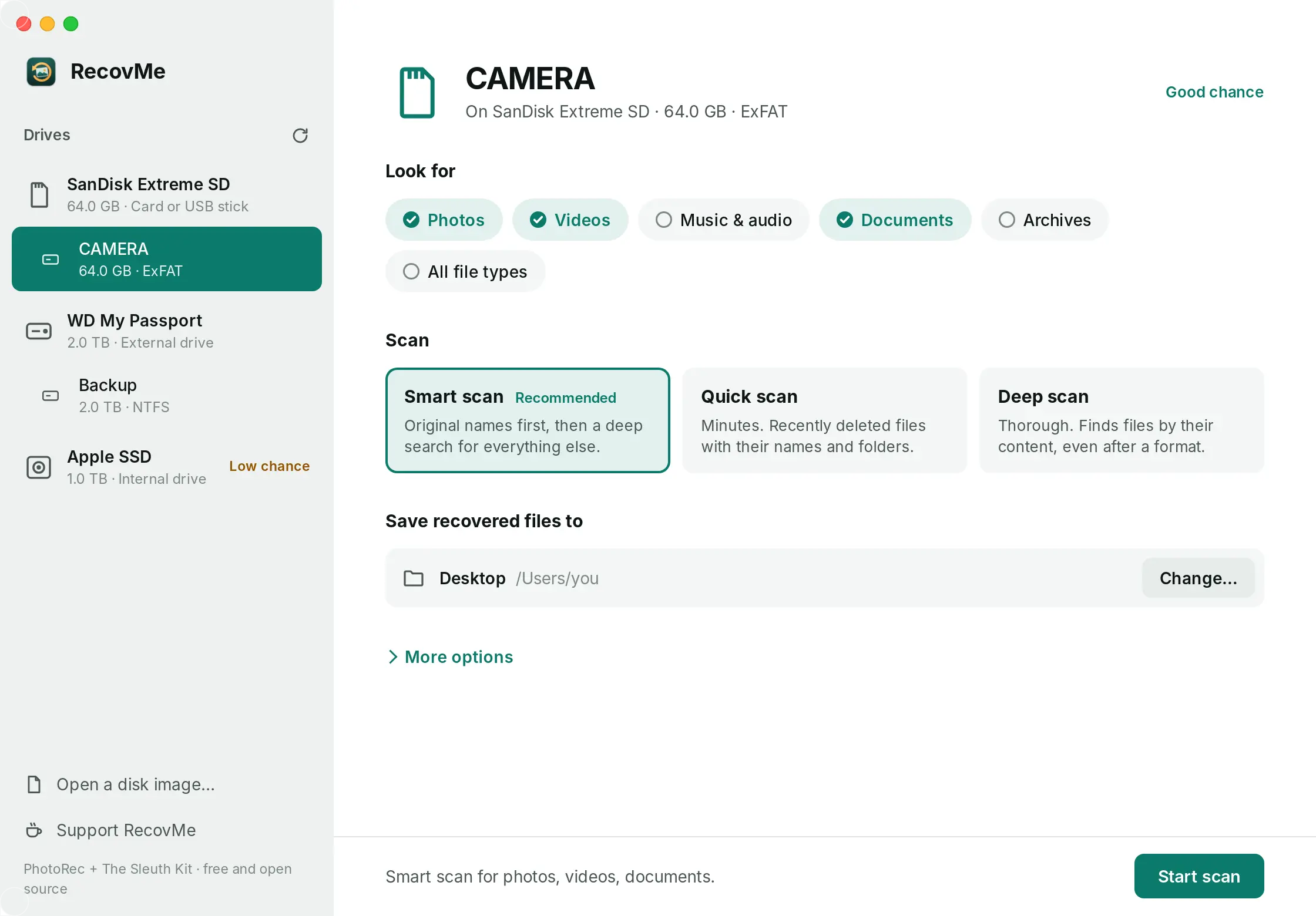
Pick the drive, the file types and the scan. - Save to a different drive
Under Save Recovered Files To, choose a folder on your computer. RecovMe won’t save onto the drive you are scanning, because that could overwrite your files.
- Start the scan and open your files
Press Start Scan, then Open Recovered Files when it’s done. Photos and videos come back named by the date they were taken. Other files get numbered names, so open the folder for each file type to find what you need.
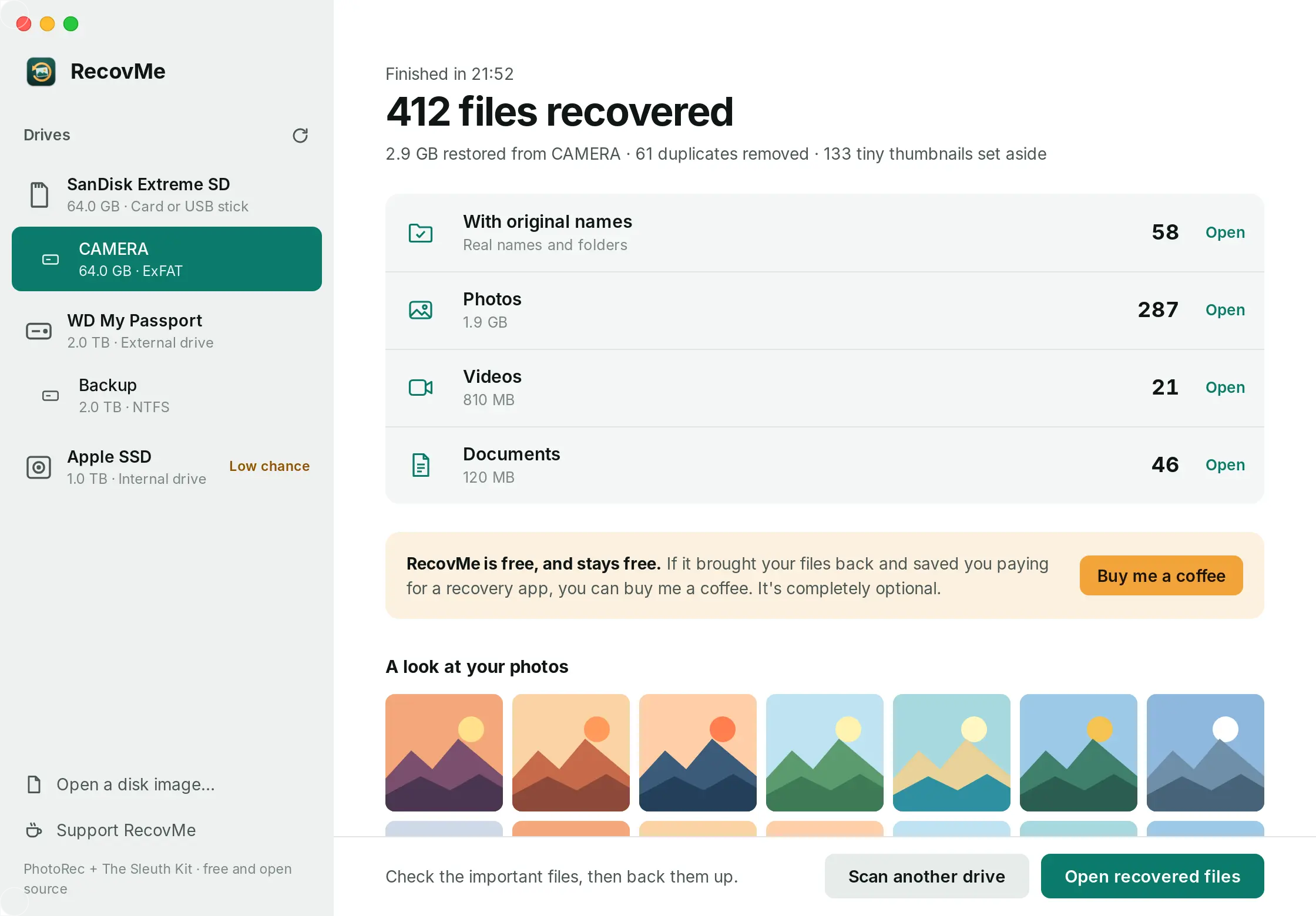
Results are sorted by type, with photos named by date.
When no app can help
If the card or stick isn’t detected at all, try another card reader and another USB port first. If it still doesn’t show up, or a hard drive clicks or keeps disconnecting, the problem is physical. Software can’t fix that, and running it can make things worse. A data recovery lab is the safe option for files that really matter.
Questions
I formatted it and then copied new files onto it. Is it too late?
Not always. The new files overwrite part of the old ones, so you’ll get back less, but anything that wasn’t overwritten can still be found. Scan it before using it any more.
Will the file names come back?
Usually not after a format, because the names were stored in the index that was erased. RecovMe names photos and videos by the date they were taken, read from inside each file, and sorts them into month folders.
I changed the format, for example from FAT32 to exFAT. Can I still recover?
Yes, if it was a quick format. Changing the format type only writes a new, empty index. The old files stay until new data is saved over them.
Is RecovMe really free?
Yes, 100%. There’s no trial, no size limit and nothing to unlock after the scan. It’s open source, and donations are optional.
Can it recover a formatted CCTV or dashcam card?
Yes, for cameras that record MP4 video, which is most home cameras and dashcams. Take the card out straight away, because these cameras record over old footage all the time.