 RecovMe
Your chances: good if you act now
Deleted or formatted video stays on the card until something is recorded over it. The problem is that CCTV cameras and dashcams record all the time, and when the card is full they write over the oldest footage. Every minute the camera keeps running can overwrite video you want back.
Do this first
- Unplug the camera or turn off the car, then take the memory card out. Don’t wait until you’re ready to scan.
- Don’t format the card in the camera or its app, and don’t put it back in before you’ve recovered what you need.
- Don’t scan it through the camera over Wi-Fi or USB. The card has to be in a card reader on your computer.
Check these places first
- The camera’s app and cloud. If you pay for cloud recording (for example with Tapo, Ezviz, Reolink or Eufy), the clip may still be there.
- The dashcam’s event folder. Most dashcams move clips recorded during a bump or when you press the button into a protected folder, often called Event, Emergency or RO. Open the card in File Explorer or Finder and look before scanning.
- The recorder, not the camera. Systems that record to a box with its own hard drive (an NVR or DVR) often store video in their own format. RecovMe is made for memory cards from cameras that record normal MP4 files.
Recover the footage in 7 steps
It works the same on a Mac and on Windows. RecovMe is free to the end: no trial, no size limit, nothing to pay before you can save.
- Put the card in a card reader
Most cameras and dashcams use microSD cards. Use the adapter that came with the card, or a USB microSD reader.
- Open RecovMe and pick the card
Download it free and open it. On a Mac, enter your password when asked. On Windows, if SmartScreen appears, choose More info and then Run anyway. Then choose the card in the list on the left.
- Choose Videos
Under Look For, keep Videos on. Keep Photos on too if the camera takes snapshots, and turn off Documents to speed things up.
- Keep Smart Scan and the whole-card search
Smart Scan is recommended. Under More Options, Search the whole drive is on by default. It searches the entire card, then leaves out clips that were never deleted, so you only get back what was lost.
- Save to your computer
Under Save Recovered Files To, pick a folder on your computer. Camera footage takes a lot of space, so check you have enough free.
- Start the scan
Press Start Scan. A large card full of video takes a while. You can press Stop at any time and keep what was found.
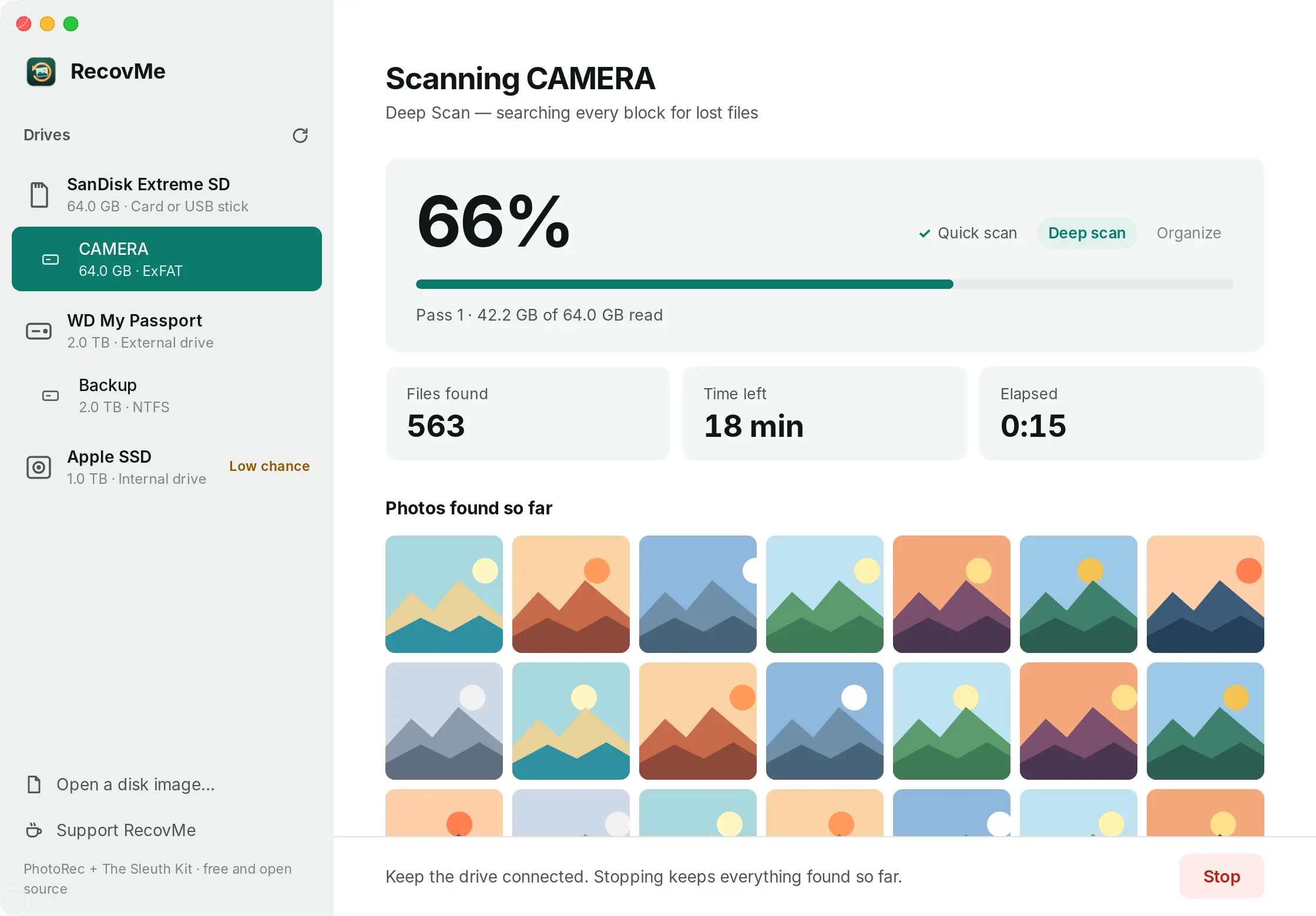
The scan shows its progress and time left. - Find your clip
Press Open Recovered Files. Clips are in Videos, named by the time recording started (read from inside each file) and sorted into month folders. Go to the date and time you need.
A clip won’t play, or stops halfway? Part of it was recorded over. Try opening it in VLC, a free player that can often play damaged video files. Clips that were fully overwritten can’t be brought back by any app.
Questions
Which cameras does it work with?
Cameras and dashcams that record MP4 or MOV video to a memory card, which is most of them, including Tapo, Ezviz, Reolink, Xiaomi and Eufy home cameras.
The dates on the clips are wrong. Why?
RecovMe names each clip by the time stored inside the file, which comes from the camera’s clock. If the camera’s date or time was set wrong, the names will be off by the same amount.
Can it recover footage from the camera’s cloud or app?
No. RecovMe reads the memory card. Footage stored in a cloud service can only be found in that service’s app or website.
The card was formatted in the camera. Is it too late?
Not if you took it out straight away. Most cameras do a quick format, which only clears the index. Once the camera starts recording again, the new video goes on top of the old footage.
Is RecovMe really free?
Yes, 100%. There’s no trial, no size limit and nothing to unlock after the scan. It’s open source, and donations are optional.