 RecovMe
Your chances: it depends on the drive
On a hard drive, deleted files usually stay until the space is reused, so the chances are good. On an SSD, which most laptops and newer PCs have, Windows tells the drive to wipe deleted files, usually within minutes. There, the free built-in options below are your best chance.
Check these free places first
- Recycle Bin. Open it on the desktop, right-click the file and choose Restore.
- OneDrive’s recycle bin. If the folder syncs to OneDrive, sign in at onedrive.com and open Recycle bin. With a personal Microsoft account, deleted files stay there for 30 days.
- Previous Versions. Right-click the folder the file was in, choose Properties, then the Previous Versions tab. It shows copies if File History or restore points were turned on.
- File History. If you set it up with a backup drive, open Control Panel › File History › Restore personal files.
Hard drive or SSD?
Press Ctrl + Shift + Esc to open Task Manager, choose Performance, then click your disk. The type, SSD or HDD, is shown on the right.
| Your drive | Your chances |
|---|---|
| HDD (hard drive) | Good, as long as you stop using the PC for anything else. A running PC keeps writing to its own drive. |
| SSD | Low. File names can survive, but the contents rarely do. RecovMe can still try, and it tells you which recovered files are empty. |
| Files were on a USB stick, SD card or external drive | Usually good. See the SD card guide or the external drive guide. |
Before you scan
- Stop using the PC for anything else: no downloads, no updates, no new files.
- Have a USB stick or external drive ready. RecovMe won’t save onto the drive it’s scanning, so on a PC with one drive you need somewhere else to put the files.
- For files that really matter, the safest way is to take the hard drive out, connect it to another computer with a USB adapter, and scan it there.
Recover the files in 6 steps
RecovMe is free to the end: no trial, no size limit, nothing to pay before you can save.
- Download and open RecovMe
It works on Windows 10 and 11 (64-bit). If a blue SmartScreen window appears, choose More info and then Run anyway. Allow it to make changes when Windows asks: it needs administrator rights to read the drive directly.
- Pick the drive
Choose the drive where the files were, usually C:, in the list on the left.
- Choose what to look for
Photos, Videos and Documents are on by default. Add Music & Audio or Archives if you need them. Fewer types make the scan faster.
- Keep Smart Scan
Smart Scan first reads the drive’s file table, which on Windows drives (NTFS) brings back recently deleted files with their original names and folders. Then it searches every block for the rest.
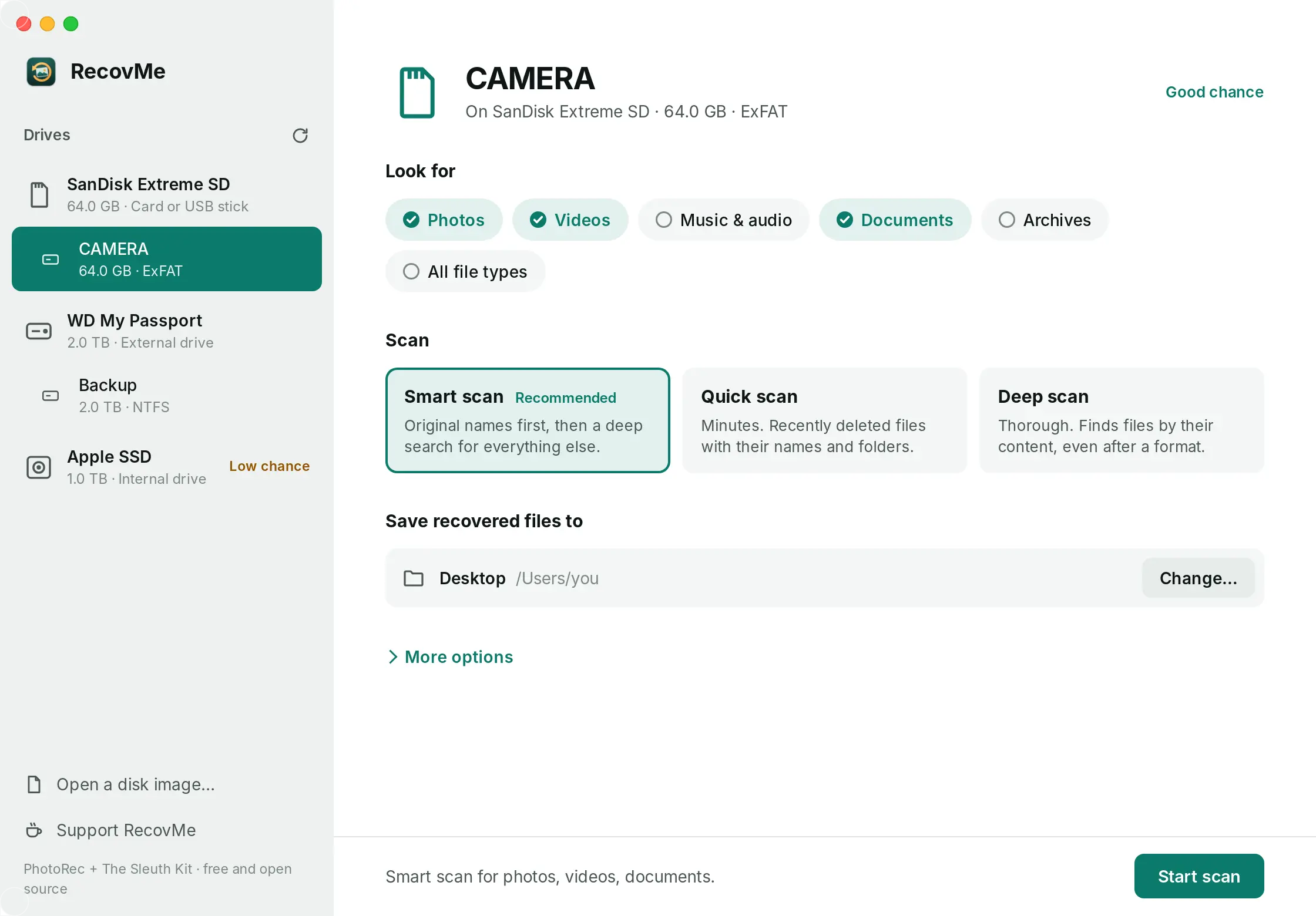
Pick the drive, the file types and where to save. - Save to your USB stick or external drive
Under Save Recovered Files To, choose a folder on the other drive. Avoid a OneDrive folder; RecovMe warns you if you pick one.
- Start the scan and open your files
Press Start Scan, then Open Recovered Files when it’s done. Files that kept their names are in Original names; the rest are sorted by type.
Questions
I used Shift + Delete. Can the files come back?
Shift + Delete skips the Recycle Bin, so the result is the same as emptying it. On a hard drive the files usually stay until the space is reused. On an SSD they are usually wiped soon after.
My PC won’t start. Can I still get my files?
If the PC has a drive you can take out, connect it to another computer with a USB adapter and scan it there. Many thin laptops have the SSD built in, and then a repair shop is the way to go.
Why does it need administrator rights?
Reading deleted space means reading the drive directly, below the files and folders Windows shows. Windows only allows that for apps running as administrator. RecovMe only reads; it never writes to the drive it scans.
Is RecovMe really free?
Yes, 100%. There’s no trial, no size limit and nothing to unlock after the scan. It’s open source, and donations are optional.
Does it send my files anywhere?
No. Everything happens on your computer. RecovMe has no account, no cloud and no tracking.